Token-Based Authentication
Reality Hub REST API uses token-based authentication with API Keys. API Keys are standalone entities that can be created independently without linking to users. Resources can be directly assigned to API Keys without requiring groups or policies, providing a simplified and efficient access management system.
Overview
The API Key system has been designed to provide:
- Standalone API Keys: API Keys can be created without linking to any user.
- Direct Resource Assignment: Resources can be directly assigned to API Keys (no groups or policies needed).
- Module-Based Permission Control: REST API endpoints use module resource keys instead of endpoint-specific resources.
- Automatic License Management: Licenses are automatically reserved when module access is granted.
Creating API Keys
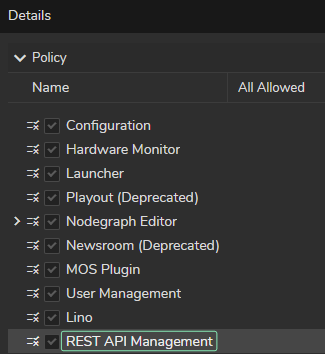
API Keys can be created from the User Management module in Reality Hub. Users with the Rest API Management can create, update, delete, and regenerate API Keys. Admin users always have permission to manage API Keys.
API Key Properties
Each API Key has the following properties:
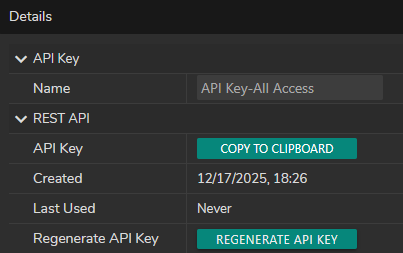
- Name: A descriptive name for the API Key.
- Key: The actual API Key token used for authentication.
- Created: Timestamp of API Key creation.
- Last Used: Timestamp of the last API request using this key.
- Regenerate API Key: Creates a new API Key.
Authentication Process
When making a REST API request, the system performs the following authentication checks:
- Validate API Key: Check if the API Key exists and is valid.
- Check Module Access: Verify that the API Key has the required module resource access.
- Check License Reservation: Verify that the required license is reserved for the API Key.
- Grant Access: If all checks pass, the request is processed.
Authentication Headers
Include the API Key in the request header:
X-API-Key: YOUR_API_KEY_HERE Or as a query parameter: ?api_key=YOUR_API_KEY_HERE
Examples:
curl -X GET "http://localhost/api/rest/v1/engines" \
-H "X-API-Key: your-api-key-here" \
-H "Content-Type: application/json"
curl -X GET "http://localhost/api/rest/v1/engines?api_key=your-api-key-here" \
  -H "Content-Type: application/json"
Module-Based Permission Control
REST API endpoints are mapped to module resource keys. API Keys must have the appropriate module resource access to use specific endpoints.
License Management
Automatic License Reservation
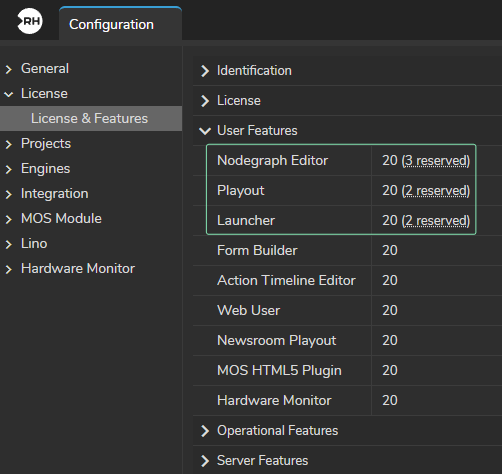
When a module resource is assigned to an API Key, the system automatically reserve the corresponding license. License reservation status is displayed in the License & Features UI, as illustrated above.
License Status Indicators
The UI displays the following license status indicators:
- Reserved: License is successfully reserved and available for use
- Expired: License has expired (validUntil date has passed) or system is in LE Mode (Limited Edition)
- Reservation failed: License could not be reserved (limit reached or unavailable, but not expired)
Resources can be assigned to API Keys even if license reservation fails. The resource assignment is independent from license reservation, allowing you to configure access in advance. However, REST API access will be denied until a license is successfully reserved.
License Expiration Handling
When a license expires:
- The reservation is automatically removed from the system
- The API Key retains module resource access (resource assignment remains)
- REST API requests are denied with a clear error message indicating license expiration
- The UI shows "Expired" status for expired licenses
Dynamic License Count Management
The system automatically adjusts license reservations when license counts change:
- When License Count Decreases: Excess reservations are automatically removed (oldest reservations first)
- When License Count Increases: Waiting API Keys (with module access but no reservation) are automatically reserved
- Real-time Updates: UI components automatically update to reflect license status changes
Resource Assignment
Direct Resource Assignment
Resources can be directly assigned to API Keys without requiring groups or policies. This provides:
- Faster Access Management: Direct assignment is faster than group-based assignment
- Simplified Management: No need to manage groups or policies for API Key access
- Independent Operation: Resource assignment works independently from license reservation
Error Handling
Authentication Errors
When authentication fails, the REST API returns appropriate HTTP status codes:
- 401 Unauthorized: API Key is missing or invalid.
- 403 Forbidden: API Key lacks required module access or license reservation.
Common Error Scenarios
Module Access Missing
403 Forbidden: API Key does not have access to required module resource
Solution: Assign the required module resource to the API Key.
License Not Reserved
403 Forbidden: Required license is not reserved for this API Key.
Solution: Make sure the required license is available and reserved. Check license availability in the License & Features in Configuration module.
License Expired
403 Forbidden: Required license has expired.
Solution: Renew the expired license or contact your administrator.
License Limit Reached
403 Forbidden: License limit reached, cannot reserve additional licenses.
Solution: Check license availability or release unused reservations.
Example
Creating an API Key for Launch Control
- Navigate to User Management > REST API Keys.

- Click Add New API Key button (plus icon).

- Enter a descriptive name (e.g., "API Key-All Access")

- Assign the Launcher module resource.
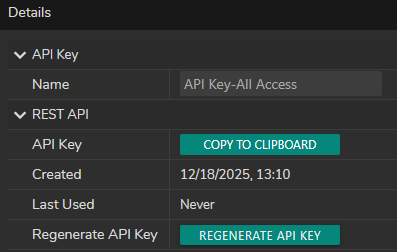
- Click on Generate API Key button. This will activate the Copy to Clipboard button.
- Copy the generated API Key for use in your application
Using API Key in cURL
# Get list of engines
curl -X GET "http://localhost/api/rest/v1/engines" \
-H <strong>"X-API-Key: your-api-key-here" </strong>\
-H "Content-Type: application/json"