AJA Configuration
Before you begin to install and configure AJA drivers and firmware, make sure that you uninstalled all AJA related entities because this process requires clean installation.
- Supported Driver Version: 17.1.0.297
- Firmware Dates:
- Corvid88 : 2023/07/18
- Corvid44 : 2024/06/18
- C44_12g_8k : 2023/07/17
| Card Variant | Firmware Name |
|---|---|
| Corvid44 12G BNC | c44_12g_8k_tprom.bit |
| Corvid 44 BNC | corvid_44.bit |
| Corvid88 | corvid_88.bit |
info
The following guide will utilize a configuration method for AJA Corvid 44 BNC card, but it is also applicable to other certified AJA drivers.
Preparations
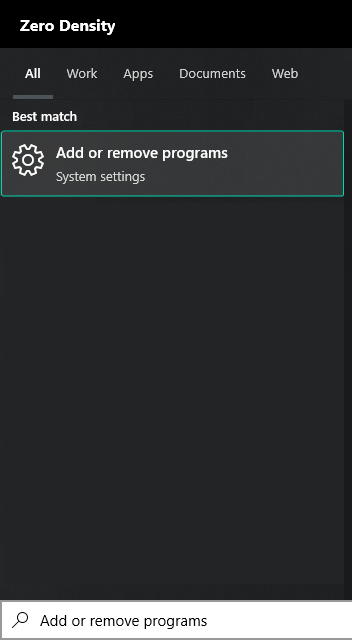
- Click on the Windows Start button, find the Add or remove programs and run it.
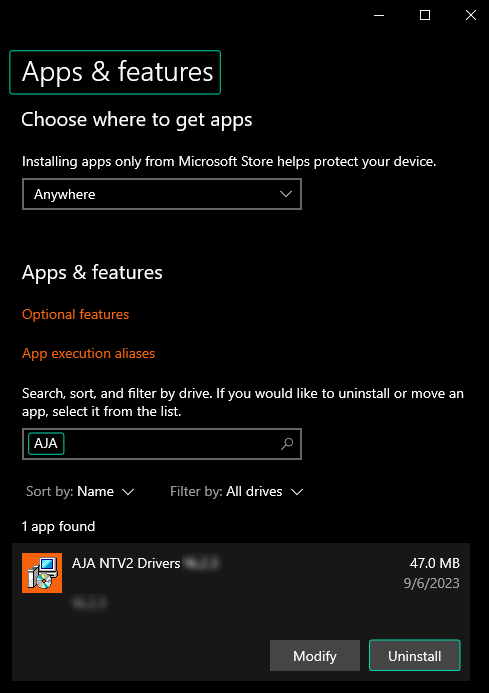
- Type AJA in the search box, uninstall anything related to AJA.
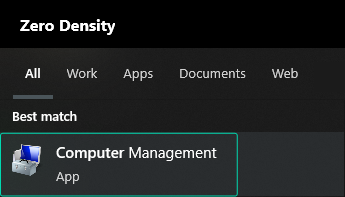
- Click on the Windows Start button, find the Computer Management and run it.
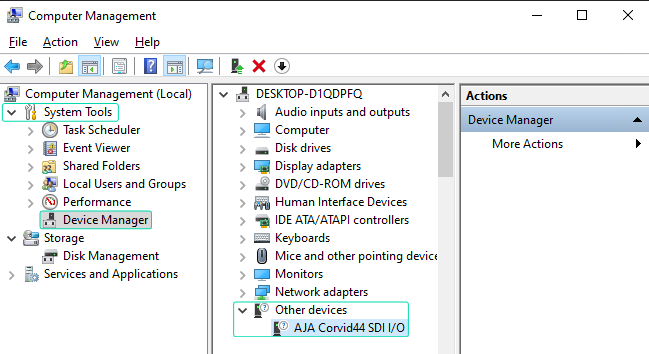
- Navigate to System Tools > Device Manager > Other Devices and check if your AJA device is listed. If it is, ensure you have uninstalled its driver by right-clicking on the device and selecting Uninstall Device.
Installations
In this stage you have to conduct following operations:
- AJA Driver Installation
- AJA Firmware Check
- AJA Firmware Update (Optional)
AJA Driver Installation

- Enter the Reality 5.5 Setup Folder.
- Go to Package > AJA > and click on the AJA_Drivers installer package.
info
The AJA Driver Installation will be carried out silently, and no warning messages will be displayed.
AJA Firmware Check
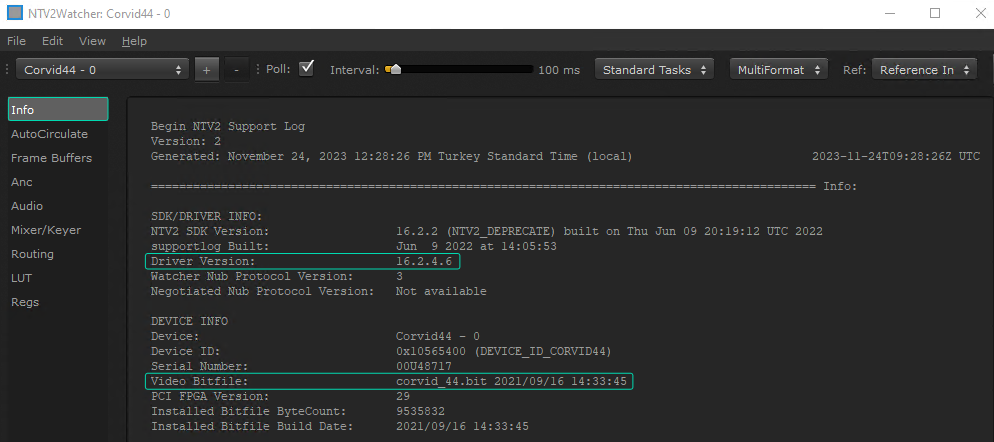
- Navigate to AJA> ntv2watcher folder.
- Double click on the ntv2watcher.exe file.
- Click on the Info and check the Driver Version and Video Bitfile
If the Firmware (Video Bitfile) is not matching, proceed with AJA Firmware Update.
AJA Firmware Update
If your AJA Firmware (Video Bitfile) is not matching with your AJA Driver, then you have to update your firmware. To do that:

- Navigate to AJA > Firmware folder.
- Launch your preferred command shell within the AJA folder, as demonstrated above.

- Type the following command as illustrated above and hit enter on your keyboard:
\ntv2firmwareinstaller -p corvid_44.bit
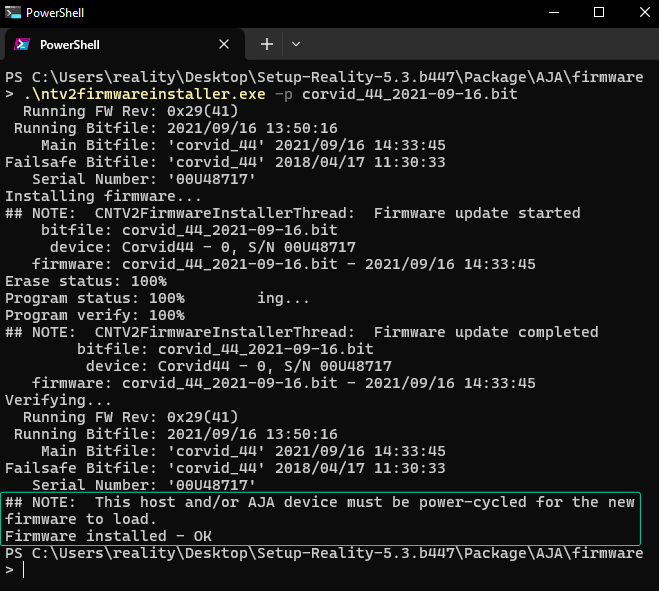
Firmware update is done.
- Restart the computer.