Activating Gang Mode
info
Before you begin, make sure that your engines are ready and they are in Configuration Mode. In our example, we will be using a three-engine scenario (Engine 01, Engine 02, and Engine 03).
To activate Gang Mode:
- Click the first engine (in our case, Engine 01) on the Engine Status Toolbar.
- Hold down the CTRL key on your keyboard and click Engine 02.
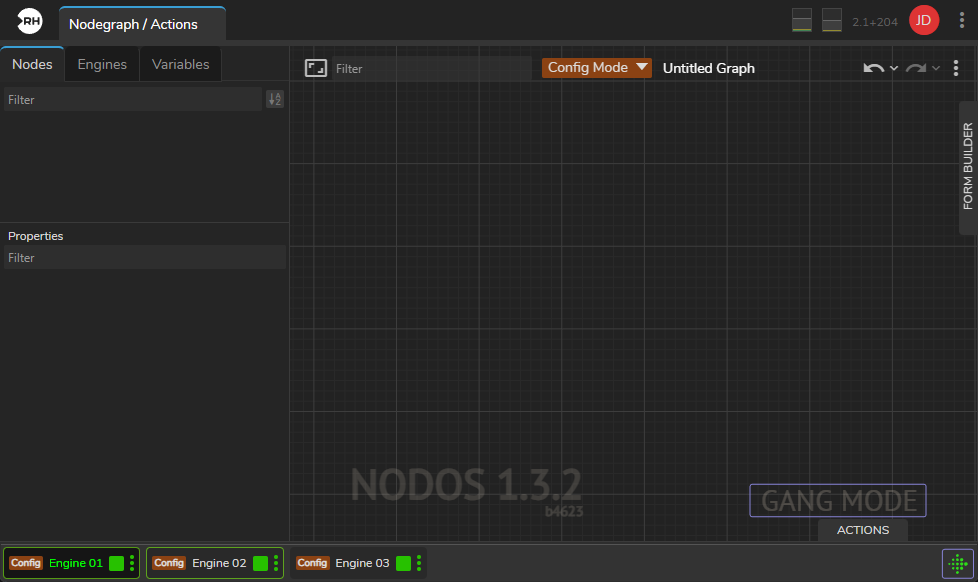
As soon as you click Engine 02, the following changes occur, as shown above:
- A green outline appears around both Engine 01 and Engine 02.
- GANG MODE text appears on the nodegraph canvas.
- The Gang button becomes activated.

- Hold down the CTRL key and click Engine 03. All engines are now in Gang Mode, as shown above. You can now conduct gang operations.