Launcher Interface
Launcher interface consist of following elements:
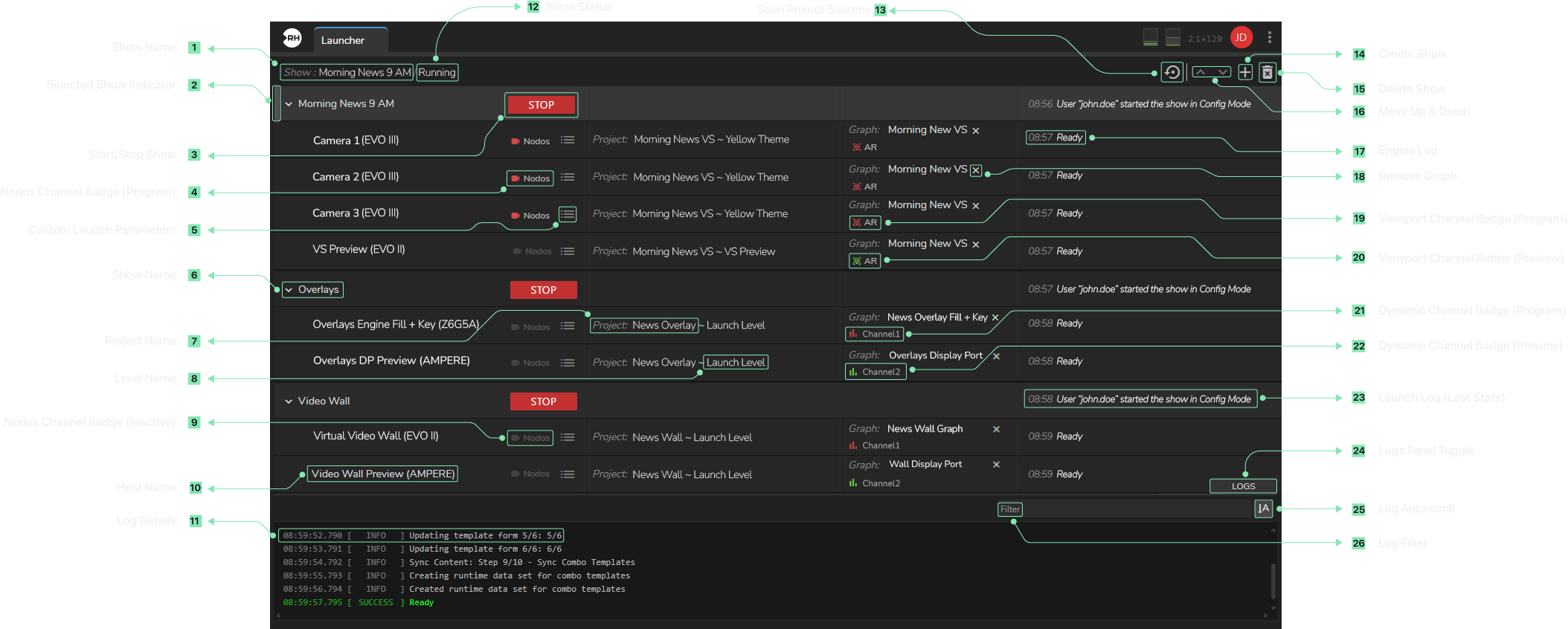
- Show Name: Displays the name of a Show.
- Selected Show Indicator: A vertical bar on the left edge of a selected Show that indicates the row is currently selected.
- Start/Stop Show: Starts the selected show in Live Mode or stops the currently running show. Disabled when no show is selected. When stopping, opens a confirmation dialog before stopping.
- Nodos Channel Badge (Program): Displays a Nodos channel with its name and role. The badge shows red for Program channels. Click to enable/disable the channel, or right-click for additional options.
- Custom Launch Parameters: Provides the parameters needed to monitor your scene in Editor Mode. Opens a dialog or overlay showing the required launch details.
- Show Name: Displays the name of a Show.
- Project Name: Shows the project name assigned to a renderer.
- Level Name: Shows the level/map name assigned to a renderer.
- Nodos Channel Badge (Inactive): Displays a Nodos channel that is currently disabled/inactive.
- Host Name: Displays the engine host display name.
- Log Details: Displays the log details of a selected shows.
- Show Status: Displays the current status of Show (Running, Stopped, Lino Editing mode).
- Scan Project Sources: Begins the Folder Scanning operation to discover available projects.
- Create Show: Creates a new show by opening a dialog to enter its name, then adds it to the Launcher.
- Delete Show: Deletes the selected show(s) or engine(s).
- Move Up & Down: Allows reordering of shows or renderers. Buttons are disabled when an item cannot be moved further.
- Engine Log: Displays engine-specific log entries with real-time messages, timestamps, and log levels.
- Remove Graph: Removes the graph assigned to an Engine. Cannot be used while the Show is running.
- Viewport Channel Badge (Program): Displays a viewport channel with its name and role (Program). The badge shows a red View-in-AR icon. Tooltip includes app key and category.
- Viewport Channel Badge (Preview): Displays a viewport channel with its name and role (Preview). The badge shows a green View-in-AR icon. Tooltip includes app key and category.
- Dynamic Channel Badge (Program): Displays a dynamic channel with its name and role (Program). The badge shows a red bar-chart-like icon. Tooltip includes app key, category, and resolution.
- Dynamic Channel Badge (Preview): Displays a dynamic channel with its name and role (Preview). The badge shows green for Preview channels. The tooltip includes app key, category, and resolution.
- Launch Log (Last State): Shows the last state or message from the launch process, providing recent launch operation details.
- Logs Panel Toggle: Toggles the visibility of the logs panel at the bottom of the launcher.
- Log Autoscroll: Toggles automatic scrolling of the log viewer to always show the latest entries.
- Log Filter: Filters log entries by keyword. Matching text is highlighted in yellow. The filter box turns green when matches are found and orange when none are found.
Show Context Menu
The Show Context Menu is a popup menu that appears when you right-click on a Show. This menu provides quick access to various actions and settings elated to that selected Show.
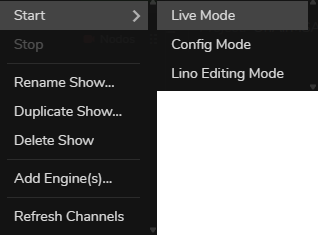
- Start: Flyout menu item provides Live Mode, Config Mode, and Lino Editing Mode when launching your show.
- Live Mode: This mode brings specific operational restrictions. When selected, context menus are disabled in the Nodegraph area, moving nodes are disabled, adding or deleting connections is not allowed, pin hover effects are disabled, and the node outline color will be green.
- Config Mode: This mode has no operational restrictions.
- Lino Editing Mode: This mode provides access to various Lino Rundown controls without requiring physical engine hardware.
- Stop: Stops the selected show.
- Rename Show: Changes the name of the Show.
- Duplicate: Duplicates the selected Show.
- Delete Show: Removes the selected Show from the Launcher.
- Add Engine(s): Allows you to add a Channel to your Show.
- Refresh Channels: Refreshes the cannels.