Template Panel
Template Panel is where your Templates (Motion Design, Nodos) are displayed.
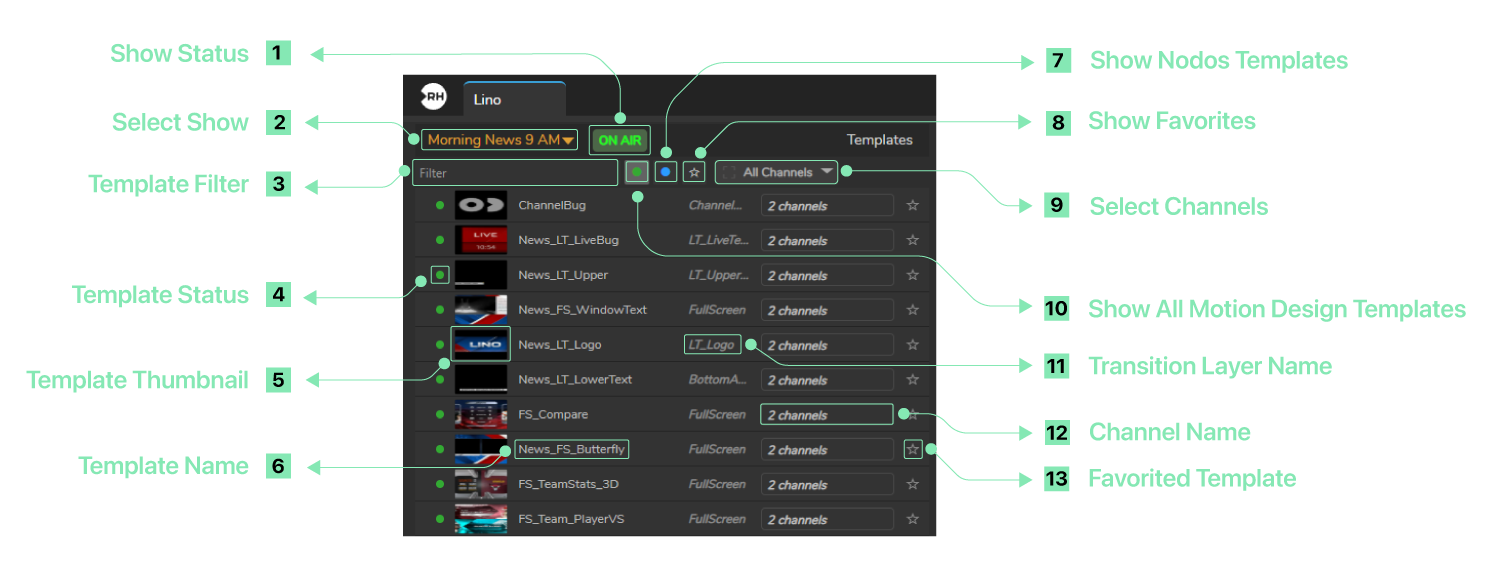
- Show Status: Button indicates the current operational status of the selected show. (It can be On-Air, Editing, Offline)
- Select Show: Dropdown (e.g. “Morning News 9 AM”) used to choose which show’s templates are being managed.
- Template Filter: Filter used to search and filter the templates.
- Template Status: Green circle indicates the template is online/ready; grey or empty circle means inactive or not available.
- Template Thumbnail: Small preview image for each template (e.g. the “LINO” graphic for News_LT_Logo).
- Template Name: Name of the template in the list (e.g. “News_FS_Butterfly”, “ChannelBug”) for identification in the rundown.
- Show Nodos Templates Toggles the display of templates categorized as Nodos Templates.
- Select Channels: Dropdown (e.g. “All Channels”) to filter the template list by the channels associated with each template.
- Show Favorites: Filters the list to show only templates marked as favorites.
- Show All Motion Design Templates: Displays all motion design templates.
- Transition Layer Name: Label in each row (e.g. “LT_Logo”) showing the transition layer used by that template.
- Channel Name: Label in each row (e.g. “2 channels”) showing the channel or number of channels assigned to that template.
- Favorited Template: An indicator for favorited templates.