DeckLink Configuration
- Supported Video I/O Device: DeckLink 8K Pro
- Supported Driver Version: Desktop Video 16.2
Preparations
- Visit the https://www.blackmagicdesign.com/support/family/capture-and-playback
- Find Desktop Video 16.2 and download the Windows x86 version.
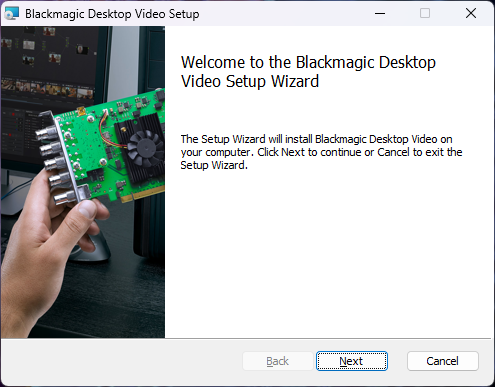
- Extract the downloaded folder, locate the
Desktop Video Installer v16.2.msifile, and double-click to run the installer.
- Complete the installation process.
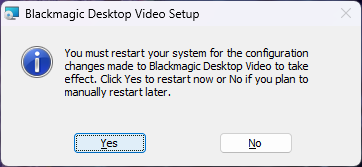
- Restart your computer.
Selecting Device and Connectors
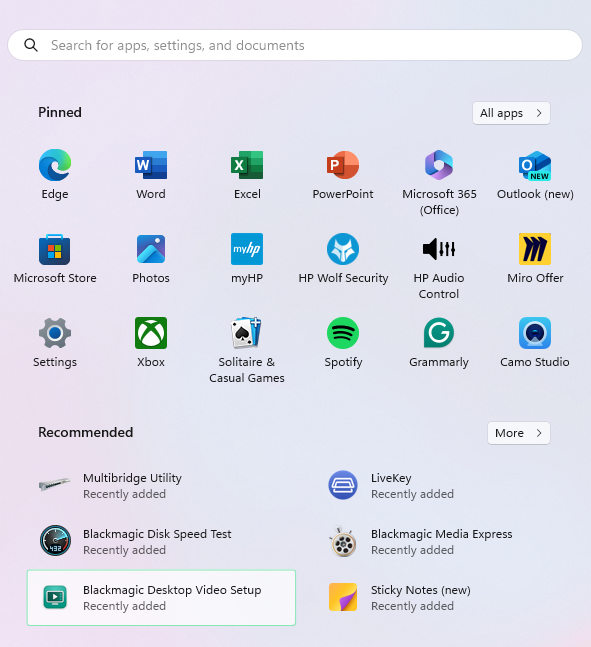
- Click the Start button on Windows, search for "Blackmagic Video Setup", and run the application
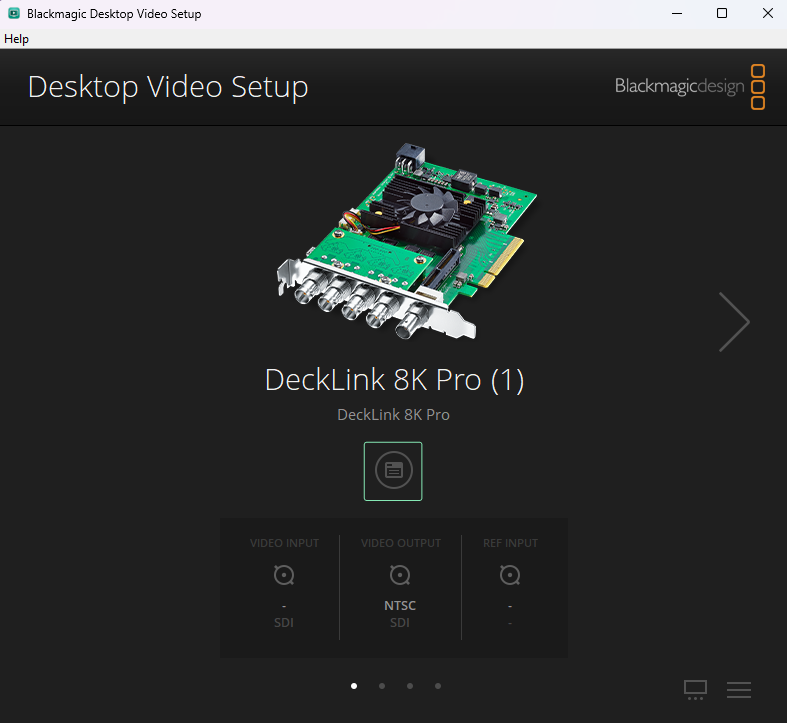
- Select the DeckLink 8K Pro from the device list in the Blackmagic Desktop Video Setup application, then click the Settings button as shown in the image above
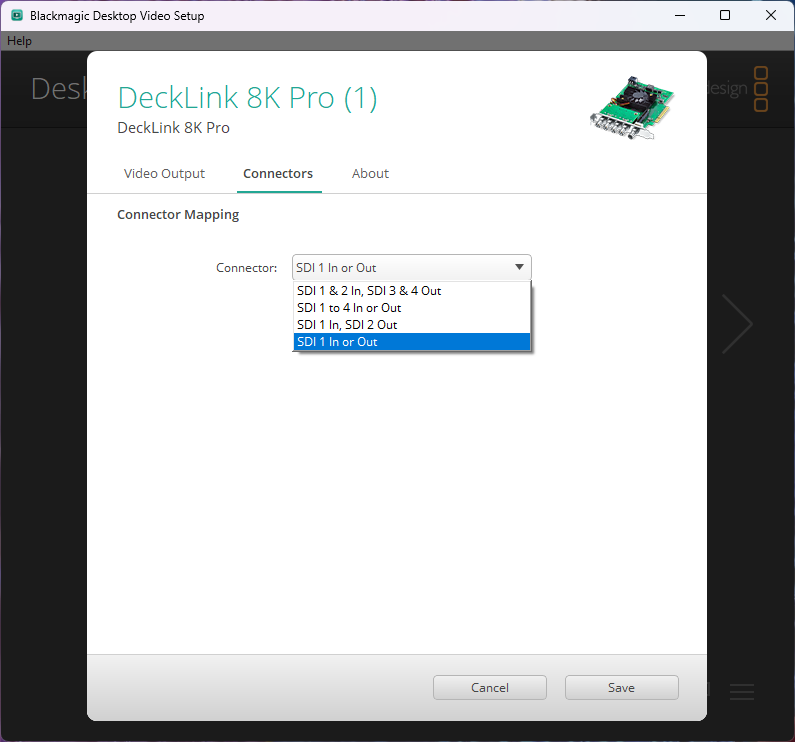
- Click the Connectors tab, and select SDI 1 In or Out option from the Connector dropdown menu, as illustrated above
- Click the Save button