Defining Track Region
In the next step, you must define a region to be tracked.
info
It is essential to know that while the ZED X camera has the ability to detect multiple individuals,software only transmits FreeD data for those who enter the Track Region through the Talent Door. See Multi-Talent Tracking.
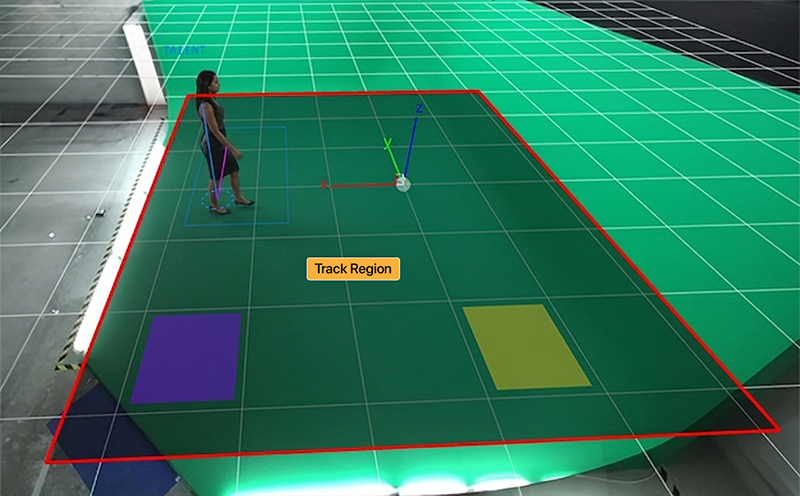
The dark area with a red border on the image above shows the track region.
To define your track region:
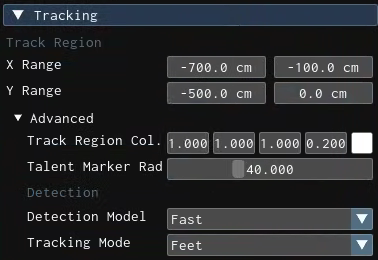
- Go Tracking > Track Region
- Adjust the X Range and Y Range property values to meet your requirements
- Go to Tracking > Advanced > Detection
- Choose a Detection Model. For more details, see Configuration Panel
- Define the Tracking Model.
- Optionally, you can customize Track Region Color, Talent Marker Color, and Talent Marker Radius via dedicated properties with the same name.