Rundown Area
Under Construction
This section is currently under construction and will be updated soon. Thank you for your patience!
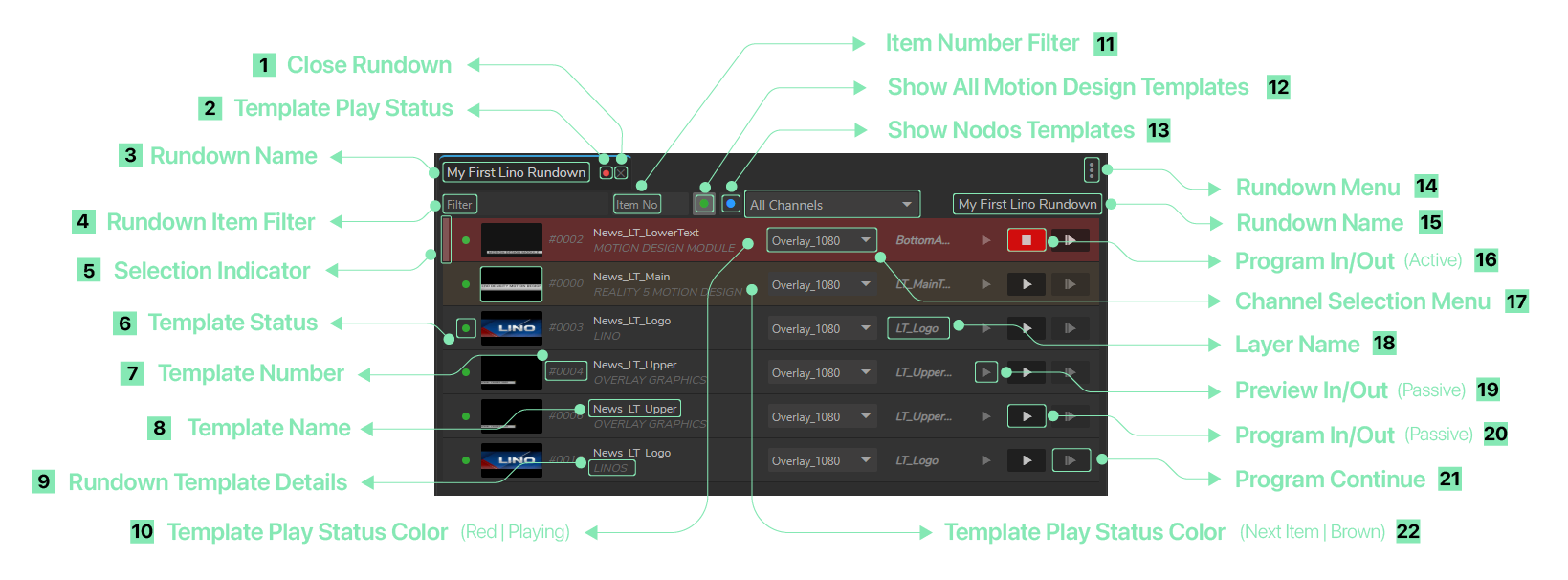
This is the area where your main rundown operations take place.
- Close Rundown: Button to close the rundown.
- Template Play Status: Indicator showing if a template is currently playing in Preview or Program.
- Rundown Name: Displays the current rundown name (e.g., "My First Lino Rundown").
- Rundown Item Filter: Input box to filter rundown items by keywords to quickly locate specific items.
- Selection Indicator: A small rectangular UI element that activates when a rundown template is selected.
- Template Status: Displays the current status of the template item. A green circle indicates the template is online and available, while a grey circle means it is offline or inaccessible.
- Template Number: Shows the rundown template number. These numbers are assigned in the order added. You can change the number by double-clicking on it.
- Template Name: Displays the name of the template.
- Rundown Template Details: Shows details of the rundown template, including its properties.
- Template Play Status Color (Red | Playing): When a template is playing, its color changes to red.
- Template Number Filter: Allows you to find and select a specific template ID.
- Show All Motion Design Templates: When enabled, this filter displays only Motion Design templates that are currently online or available.
- Show Nodos Templates: When enabled, this filter displays only templates that belong to Nodos.
- Rundown Menu: Provides additional options or a context menu for managing rundown items, such as editing, deleting, or other rundown-specific operations. See also Rundown Menu.
- Rundown Name: Displays the current rundown name (e.g., "My First Lino Rundown").
- Program In/Out: Buttons to control the live broadcast of the rundown item, allowing you to put the item on-air ("In") or take it off-air ("Out").
- Select Channels: Allows you to select channels linked to specific rundown items (e.g., "Overlay_1080" & "News_LT_Main").
- Layer Name: Displays the name of the layer associated with the template.
- Preview In/Out: Buttons to preview the rundown item’s In and Out points, enabling verification before broadcasting.
- Program In/Out: Buttons that control the live broadcast of the rundown item, allowing you to put the item on-air ("In") or take it off-air ("Out").
- Program Continue: If your design contains a sequence, this button allows you to continue playing after the initial design has finished.
- Template Play Status Color (Brown | Next Item): When a template's color is brown, it indicates it is the next item to be played.