Templates Panel
Under Construction
This section is currently under construction and will be updated soon. Thank you for your patience!
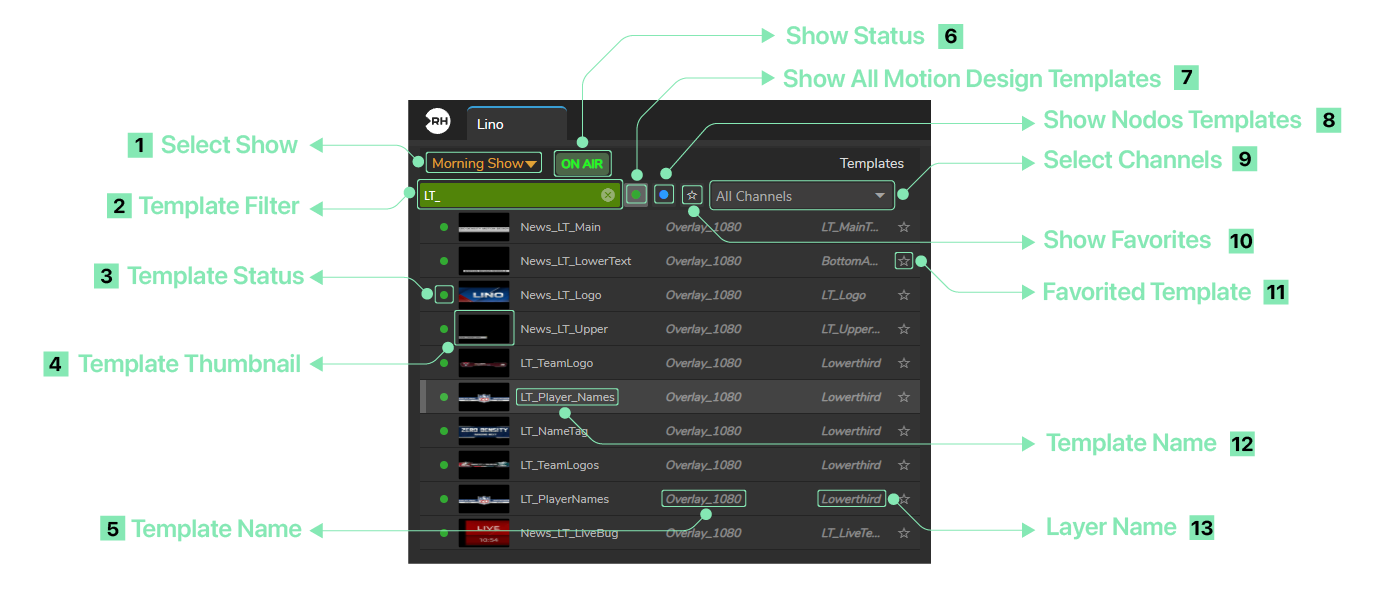
When you launch your Motion Design project, Templates panel looks like in the image above.
- Select Show: Dropdown menu that allows you to select/change Show.
- Template Filter: Input box to filter templates based on keywords to quickly search and locate specific templates in the list.
- Template Status: Displays the current status of the template item. A green circle indicates that the template is online and available, while a grey circle means the template is either offline or not accessible.
- Template Thumbnail: Displays a visual preview thumbnail of the template content.
- Template Name: Displays the name of the template, which helps identify each template in the rundown list.
- Show Status: Displays the current operational state of the Show. When enabled, this filter displays only the Motion Design templates that are currently online or available.
- Show All Motion Design Templates: When enabled, this filter displays only the Motion Design templates that are currently online or available.
- Show Nodos Templates: When enabled, this filter displays only those templates that belong to the Nodos.
- Select Channels: Allows you to select a channel is linked to specific rundown items (e.g., "Overlay'_1080" & "News_LT_Main").
- Show Favorites: When enabled, this filter displays only those templates are added to favorites.
- Favorited Item: Shows the favorited item.
- Template Name: Displays the name of the template, which helps identify each template in the rundown list.
- Layer Name: Displays the name of the layer the template is associated with.