Playing Rundown Items
In the previous chapters, we learned how to work with Templates in Lino Playout. This chapter explains how to prepare a Rundown and play items.
Preparations
In this chapter, we use the Virtual Studio Example project from Reality Editor Projects, as it contains different template types suitable for this workflow.
We will use two engines:
-
Engine 01 – Program engine
- Nodos Channel enabled in Launcher
- Channel name: PGM_VirtualStudio
-
Engine 02 – Preview engine
- Nodos Channel disabled in Launcher
- Channel name: PVW_VirtualStudio
Both engines will host the same project.
Creating Graphs for Engines
- Copy the above LiveGraph and paste it into Engine 01’s nodegraph. Save the graph.
- Download the Video Play template from above.
- Import it through Form Builder by opening the Form Builder menu and selecting Import from the context menu. Save the template.
- Update the video source by modifying the Path properties according to your selected media files. Save the changes.
- Activate the Advanced Preview Monitor – Channel A and connect it to Engine 01’s Scene output pin.
- Copy the LiveGraph above and paste it into Engine 02’s nodegraph. Save the graph.
- Activate the Advanced Preview Monitor – Channel B on Engine 02’s PVW_VirtualStudio output pin.
- Switch the Advanced Preview Monitor to Multi-View.
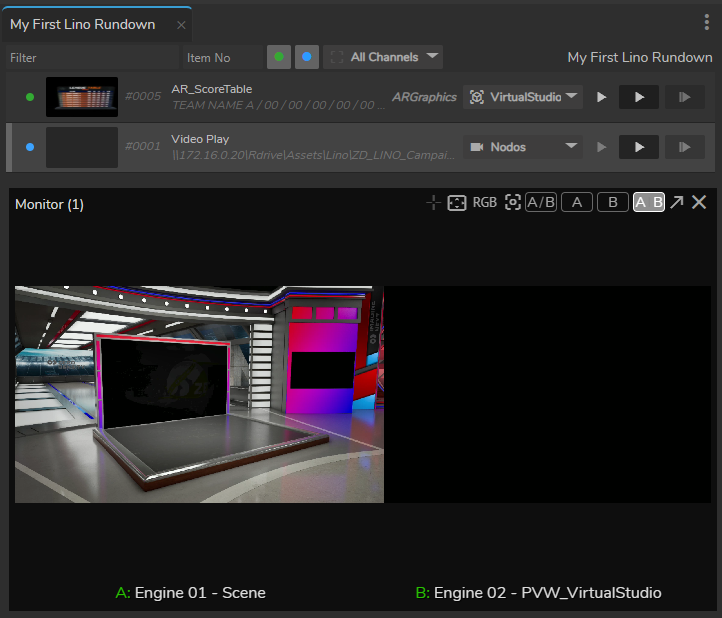
The system is now ready to play templates.
Creating a Rundown and Playing Items
- Open the Lino Rundown module.
- Click Rundown Menu and select New Rundown.
- Enter a name, for example: My First Lino Rundown.
Filter the templates you want to use and add them to the Rundown.
In this example, we will use:
- Video Play: Nodos template used to control video inputs, transition and play.
- AR_ScoreTable: Augmented Reality graphic created in Unreal Engine Motion Design.
For single selection, select a template with your mouse and drag it into the Rundown Area. For multiple selection, hold down the CTRL key, select multiple templates, and drag them into the Rundown Area.
Your Rundown and Advanced Preview Monitor should match the image shown above.
Playing Templates
- Select the Video Play item in the Rundown.
- In the Template Form Panel, click Play under Intro Video. The video plays on screen.
- Select AR_ScoreTable in the Rundown.
- Click Preview In. The template plays on the Preview engine (Engine 02). The AR_ScoreTable animation appears on the preview output.
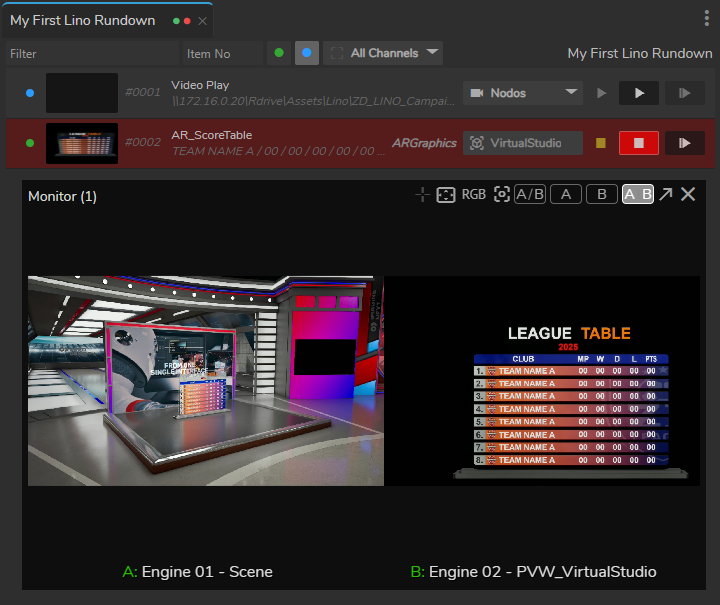
- Click Program In for AR_ScoreTable. The template is taken to Program (Engine 01), as illustrated above.