Templates in Lino Playout
In the previous chapters, channel setup was completed on the launched engines. This section convers how you operate with Templates.
After you create a Dynamic Channel or spawn a Reality Camera, templates automatically appear in the Lino module’s Templates Area. Project Channels and Nodos templates are exceptions. For Project Channels, templates become available after adding a UE5 process node to the nodegraph canvas. Nodos templates are always available.
Process
- Open the Lino module.
- In the Template Panel, click Show All Motion Design Templates (green circle) and Show Nodos Templates (blue circle).

- Click Select Channels. The dropdown list displays all created channels, as shown above.
When you select a specific channel, only the templates associated with that channel’s project are displayed. Selecting All Channels displays all online templates.
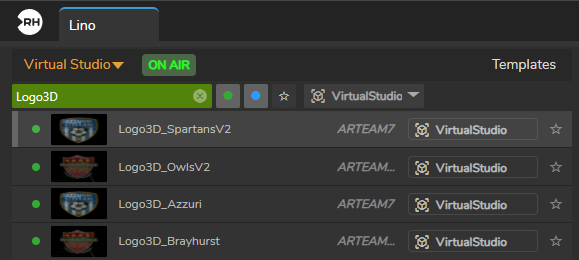
- Select the Virtual Studio channel. In Template Filter, type
Logo3D. The related templates appear, as shown above.
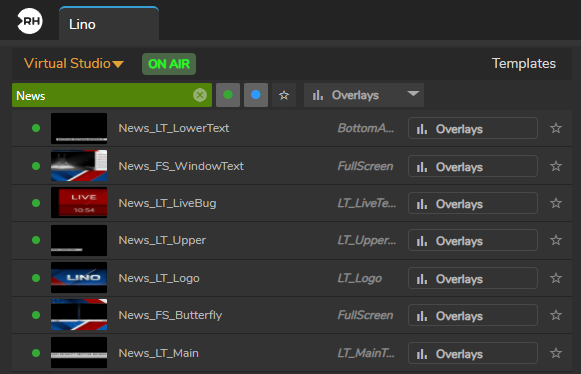
- Select the Overlays channel. In Template Filter, type
Newsand review the results.
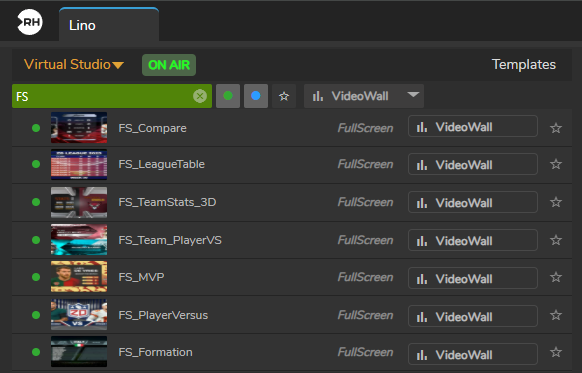
- Select the VideoWall channel. In Template Filter, type
FSand review the results.
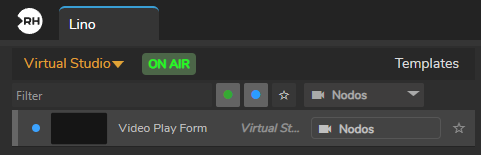
- Select the Nodos channel to view Nodos templates.
Combo Templates
You can combine multiple templates into a single Combo Template and play them together. This is useful for broadcast overlay graphics where multiple elements (such as bug, lower third, and logo) may require to transition simultaneously.
To create a Combo Template:
- Select the Overlays channel.
- Hold down the CTRL key and select the templates you want to combine.
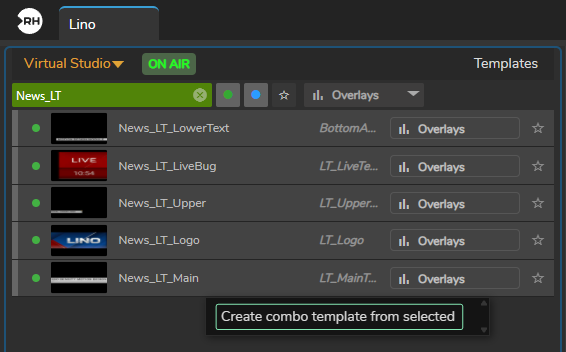
- Right-click and choose Create combo template from selected.
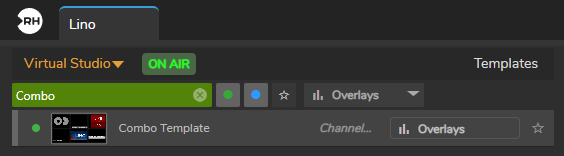
The Combo Template is now ready to use.
Creating a Combo Template does not move the original templates into it. The Combo Template is created as an additional item.
Additional Indicators
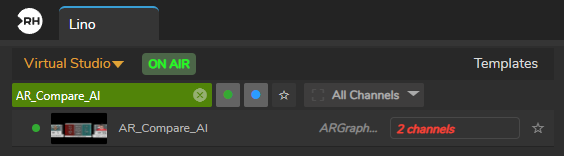
- If a template is available in multiple channels but its content differs, the channel name is displayed in red, as shown above.
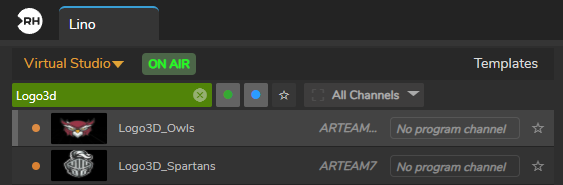
- If a template is not available on any Program channel, the Template Status is displayed in orange, and the Channel Name shows No program channel, as illustrated above.