Project Overview
Introduction
This scenario simulates a Morning News production with a Virtual Studio environment, including tracked cameras, overlays, and virtual video walls. The workflow begins with creating and launching Shows. You will then prepare the required node networks in Nodegraph, create the Rundown, and proceed to playout operation.
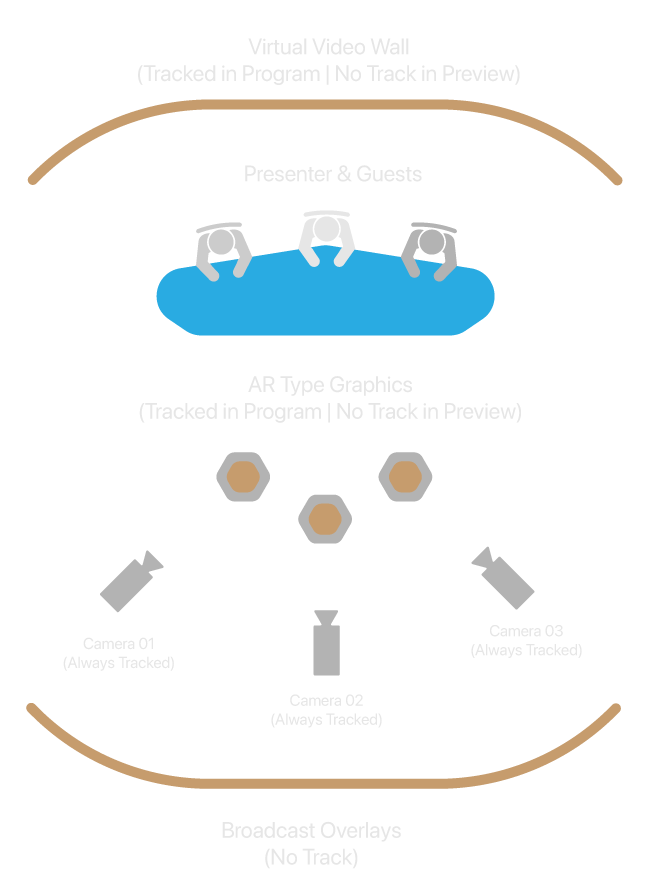
The above image displays the Morning News production concerning example playput operation with Lino Playout.
Shows
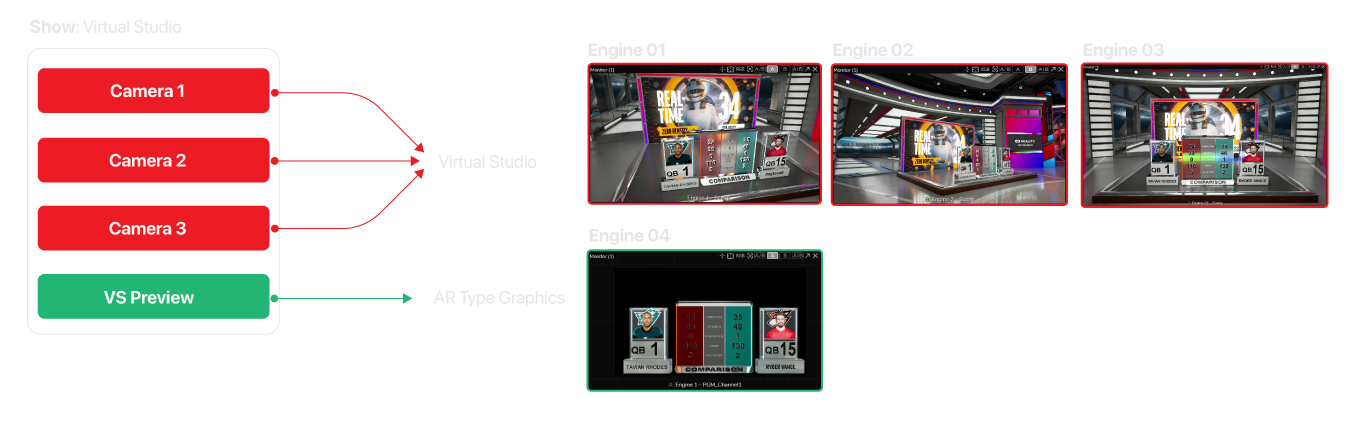
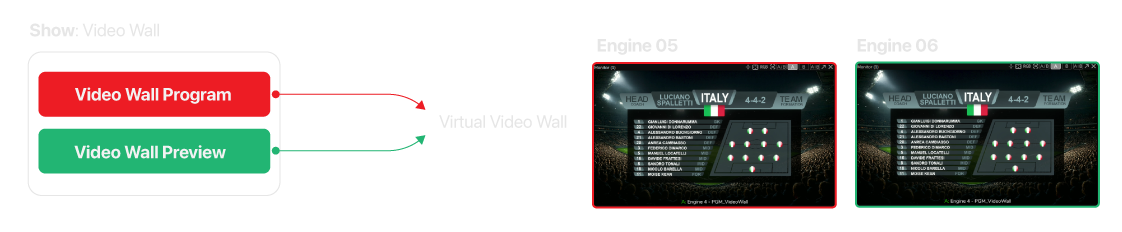
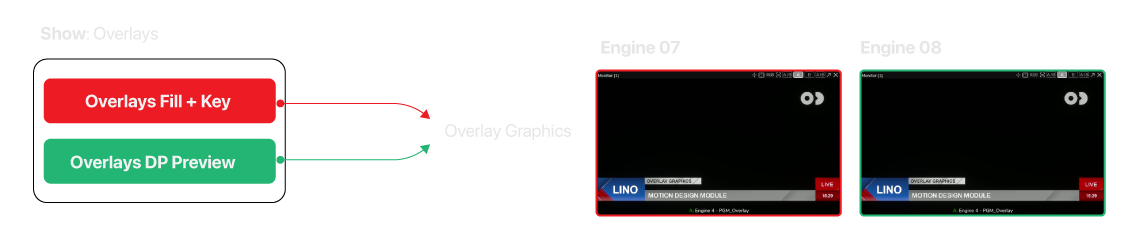
The following images show how each show is structured and what its outputs are.
Channels and Engines Layout
The following table describes how engines and output channels are assigned in this example: which engine drives each show (Virtual Studio, Video Wall, Overlays), its role (Program or Preview), purpose, channel type, and channel name. Use it as a reference when configuring Lino Playout and when assigning rundown items to channels.
| Show | Engine Name | HostName | Role | Project Type | Channel Type | Nodos Channel | Channel Name |
|---|---|---|---|---|---|---|---|
| Virtual Studio | Engine 01 | Camera 01 | Program | Tracked Virtual Studio | Enabled | PGM_AR | |
| Engine 02 | Camera 02 | Program | Tracked Virtual Studio | Enabled | PGM_AR | ||
| Engine 03 | Camera 03 | Program | Tracked Virtual Studio | Enabled | PGM_AR | ||
| Engine 04 | VS Preview | Preview | AR type graphics | Dynamic | Disabled | PVW_AR | |
| Video Wall | Engine 05 | Video Wall Program | Program | Virtual video wall | Dynamic | Disabled | PGM_VideoWall |
| Engine 06 | Video Wall Preview | Preview | Virtual video wall | Dynamic | Disabled | PVW_VideoWall | |
| Overlays | Engine 07 | Overlays Fill + Key | Program | Broadcast Overlays | Dynamic | Disabled | PGM_Overlays |
| Engine 08 | Overlays DP Preview | Preview | Broadcast Overlays | Dynamic | Disabled | PVW_Overlays |