Preparing Launch
This section walks you through setting up and launching your shows in the Launcher: creating shows, assigning engine hosts, configuring projects, and launching the Show.
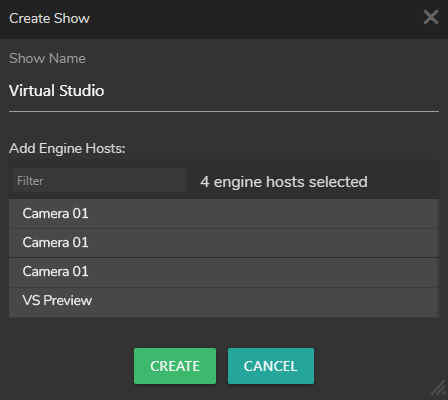
- Open the Launcher module and click Create Show. Rename the show to Virtual Studio, select Engine hosts, and click Create.
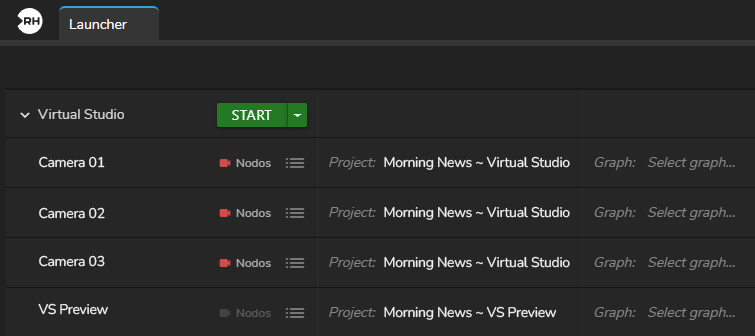
- After the show is created, disable the Nodos channel for the VS Preview engine. Then select the appropriate project. The Launcher should match the configuration shown above.

- Create a second Show and rename it to Video Wall. Add the required Engines, disable the Nodos channels for both engines, and select the appropriate project. The configuration should match the example shown above.

- Create a third show and rename it to Overlays. Add the required engines, disable the Nodos channels for both engines, and select the appropriate project. The configuration should match the example shown above.
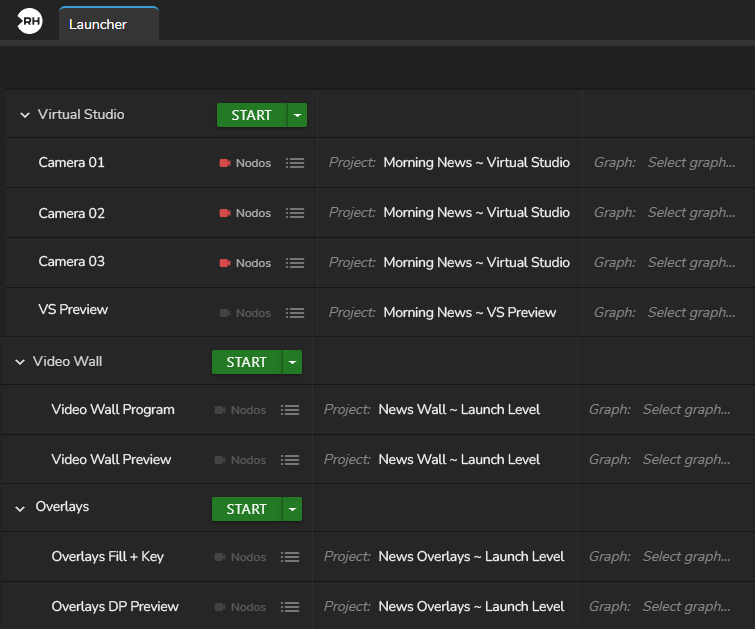
- After completing these steps, the system configuration is ready to launch, as shown above.
- Click Start for each show, then switch to the Nodegraph module.