Operating Journalist Preview
Once an administrator has started the preview server, anyone with access can preview templates from the Reality Hub MOS Interface.
You dont need an actively running MOS to use Journalist Preview.
Open the Preview Panel
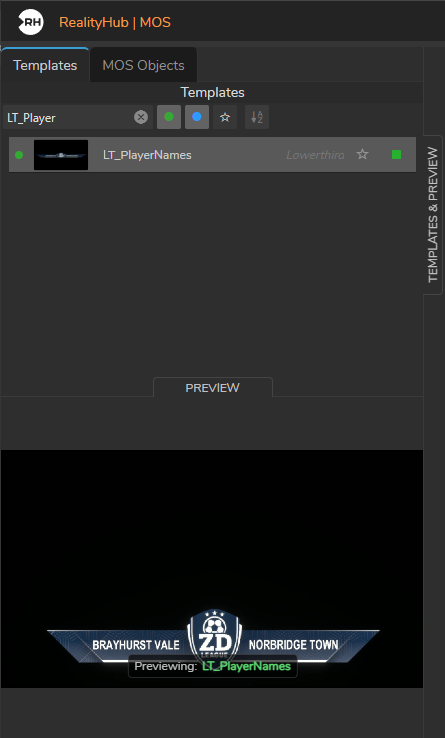
- Open the Reality Hub MOS Interface.
- On the left side, open the Templates & Preview panel (use the handle on the edge of the panel if it is collapsed).
- Inside that panel, use the PREVIEW handle to show or hide the video area at the bottom.
The layout has:
- Top — Template list or MOS Objects list (tabs).
- Bottom — A 16:9 video frame where the preview appears.
Preview controls and the video player only appear when the preview server is running (started by an administrator).
Preview a Template from the List
- Make sure the preview server is Ready (check with your administrator or the toolbar icon).
- Open the Templates tab.
- Find the template you want. Templates that are loaded and available on the preview engine show as online (when the preview panel is open, you can filter to online templates).
- Click the Play button on the template row.
The template loads on your assigned preview channel and video appears in the preview panel. The row’s button changes to Stop while that template is previewing.
Click Stop (or the stop icon) to end your preview and free your slot.
Preview While Editing a MOS Object or Template Form
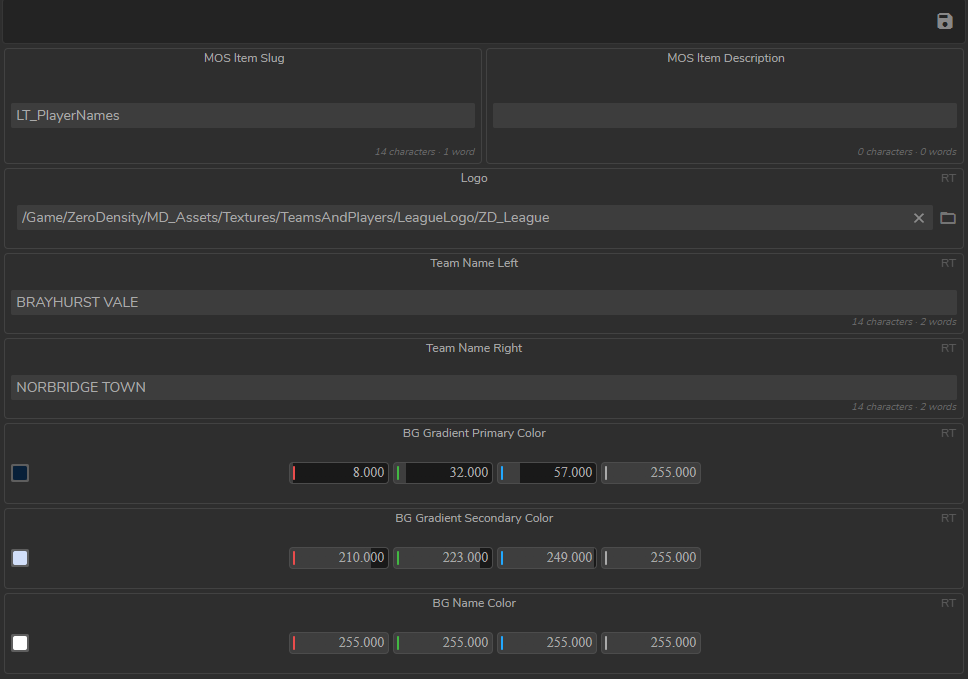
- Select a template or MOS object so the form opens on the right.
- Fill in or change fields as needed.
- Use the Play control on the form to start preview (same behavior as the list Play button).
- As you edit fields, the preview updates automatically — you do not need to press Play again for each change.
When you finish, use Stop to release your preview slot.
The bottom of the video frame shows Previewing: followed by the template or object name.
Which Templates Can Be Previewed?
A template can only be previewed if:
- The preview server is Ready.
- The template exists in the project and map selected in Preview Module configuration.
- The template is online on the preview engine.
If the Play button is disabled, the template is not available on the preview engine yet.
One Preview per User
Each user can hold one preview slot at a time. If you start a new preview, your previous preview is stopped automatically.
If all slots are in use, you will see a message such as No available preview slots. Wait for another user to stop their preview, or ask an administrator to increase the number of slots (requires stopping the preview server first).
Preview Server
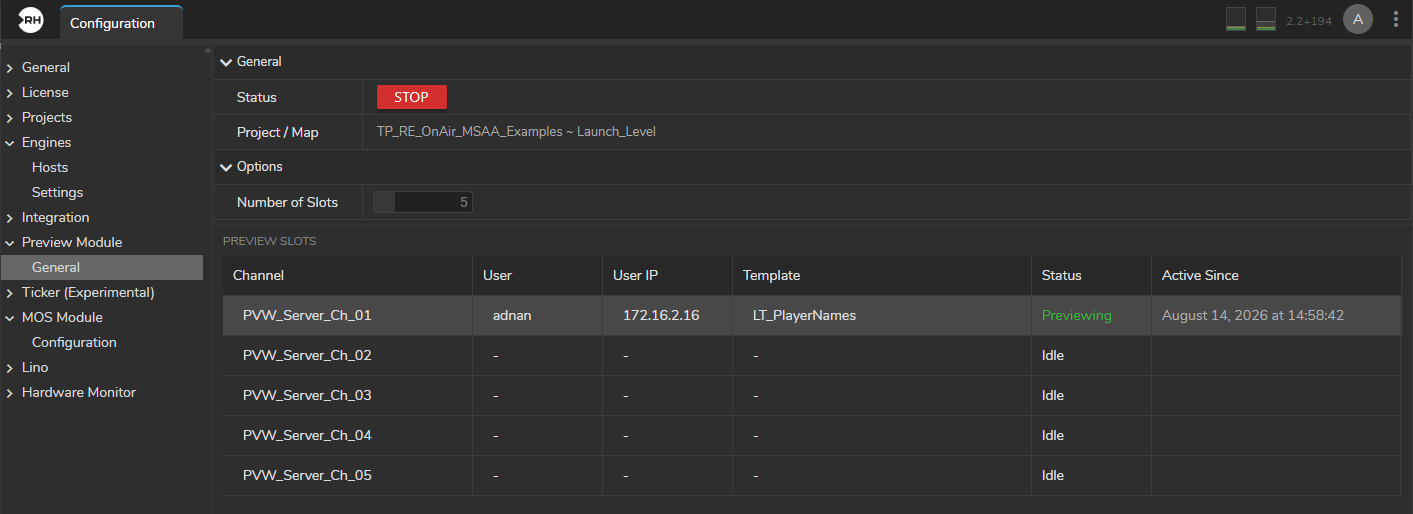
While the preview server is running, the Preview Slots grid in Preview Module configuration shows who is using the system:
| Column | Description |
|---|---|
| Channel | Preview channel name (for example, PVW_Server_Ch_01). |
| User | Reality Hub username holding the slot, or - if idle. |
| User IP | IP address of the user’s session. |
| Template | Name of the template being previewed. |
| Status | Idle, Preparing, or Previewing (highlighted in green when active). |
| Active Since | When the user acquired the slot. |
Use this table to see capacity, identify who is previewing, and troubleshoot “no slots available” situations.
Stopping the Preview Server
Administrators can stop the preview server at any time:
- Open Preview Module configuration.
- Click Stop.
When the server stops:
- All preview slots are cleared.
- Active video streams in users’ browsers stop.
- Preview engines and related processes on the preview host are shut down.
Users who had an active preview will need to start again after the server is restarted.