FreeD/PTZ
This example uses a Sony PFR7 PTZ camera. Other cameras would have different user interfaces and configuration, but feature-wise they should be similar.
Configure External Tracker
PTZ Camera
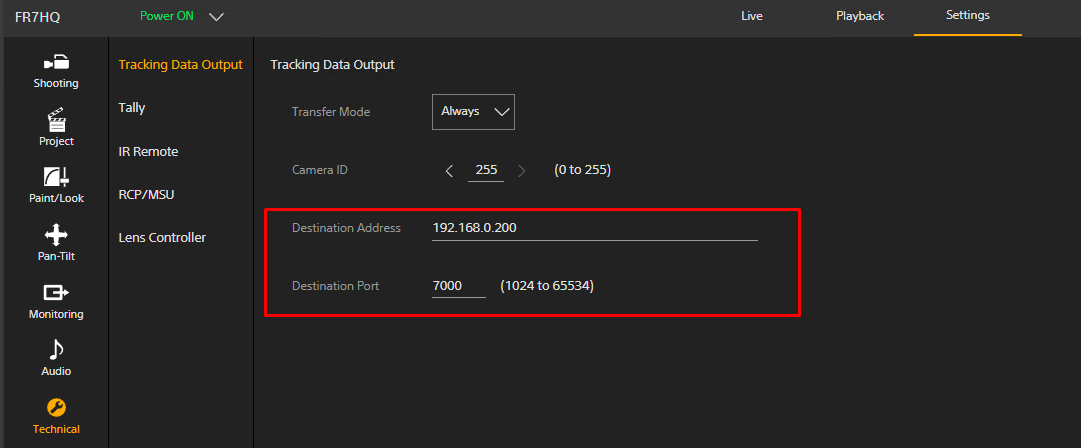
- Configure the PTZ camera to send FreeD track data to the IP address of the PC on which you run Traxis Hub. Note down the IP port number that the camera sends the data to. In this example, the PTZ camera is configured to send to port 7000.
Other FreeD-Capable Trackers
- Configure the tracker as described in its user manual to send FreeD data to the IP address of the Traxis Hub PC.
Add Tracker
- In Traxis Hub, open the Tracker panel and click Add to add a new tracker.
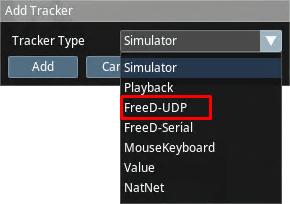
- Select FreeD-UDP from the dropdown menu to add a UDP-based FreeD tracker.
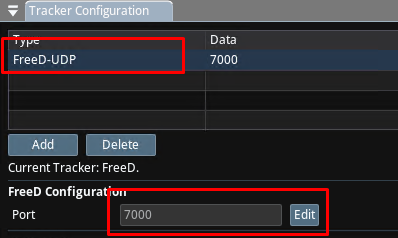
- Select and highlight the tracker, and configure the port to the port used by the camera or tracker.
Determine FreeD Characteristics of the Tracker
FreeD Ranges
Although FreeD zoom/focus ranges are defined as 0 to 60000, most PTZ cameras use different ranges. You must determine the range (min/max) of these values for the camera you use.
On the PTZ camera:
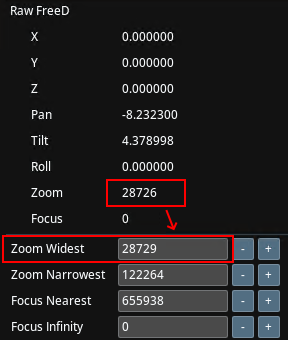
- Widest Zoom: Zoom out fully (Wide), observe the Raw Zoom value on Traxis Hub, and record the value in Zoom Widest.
- Narrowest Zoom: Zoom in fully (Telephoto), observe the Raw Zoom value on Traxis Hub, and record the value in Zoom Narrowest.
- Nearest Focus: Zoom out fully, and set the focus to minimum (nearest). Observe the Raw Focus value on Traxis Hub, and record the value in Focus Nearest.
- Infinity Focus: Zoom out fully, and set the focus to maximum (furthest). Observe the Raw Focus value on Traxis Hub, and record the value in Focus Infinity.
Some cameras use a reverse convention on focus values. As a result, they will report Focus Nearest as higher than Focus Infinity. This is normal.
Pan/Tilt Inverseness
Some third-party trackers and PTZ cameras use different sign conventions on the sign/direction of Pan and Tilt angles.
-
Pan and tilt the camera, and observe the ground grid in Traxis Hub. If Pan and Tilt directions are incorrect, then select the corresponding Invert Pan or Invert Tilt checkboxes and ensure the directions are correct.
-
If the Pan and Tilt orders appear to be wrong (e.g., panning the camera causes a tilt in Traxis Hub), and if the Pan/Tilt/Roll defaults don't work, configure the coordinate system and the order of pan/tilt/roll that the camera sends.

Traxis Hub coordinate system is right-handed, +Y is up.