Operating ZD Weather
After you finalize the setup, second step is building a playlist.
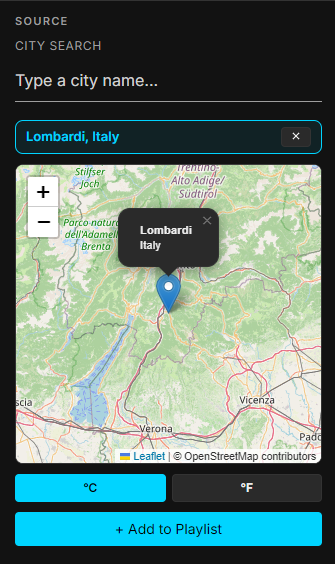
- Type a city name in the City Search box (at least 2 letters).
- Pick the correct match from the dropdown. The city appears on the map.
- Choose °C or °F.
- Click Add to Playlist. The city joins the playlist with a fresh forecast.

Optionally you can pick a Country to limit the draw, or leave All countries for a global sweep. You can set the random city count 1 to 10. When you click Add Random, you playlist will be populated with amount of city you define.
info
Random Fill uses a built-in list of 199 cities across 53 countries. It skips cities already in your playlist. If the chosen country has fewer cities left than you asked for, you get a warning and only the cities that are available.
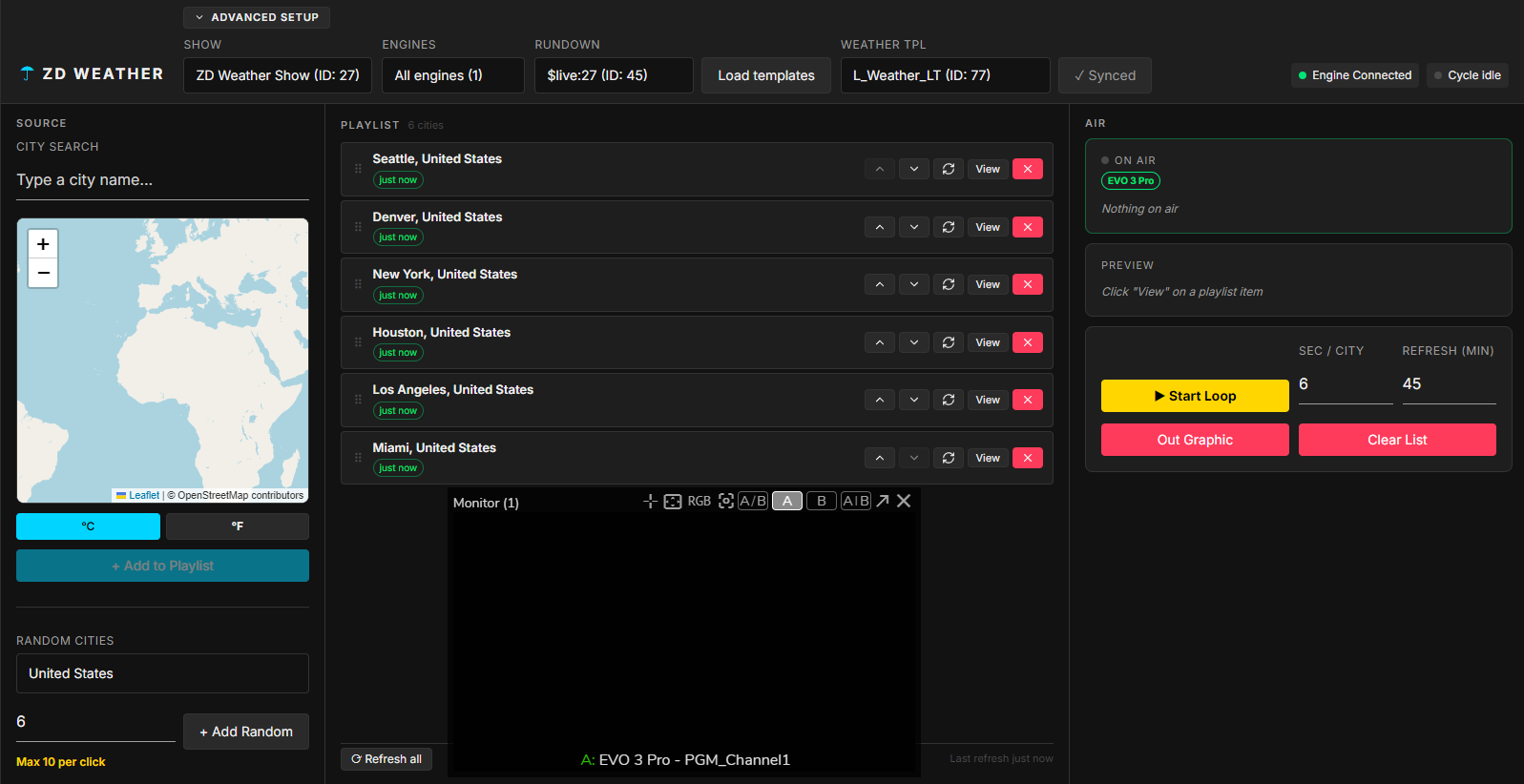
You ZD Weather show is ready to go on air.
- Click on the Start Loop button.
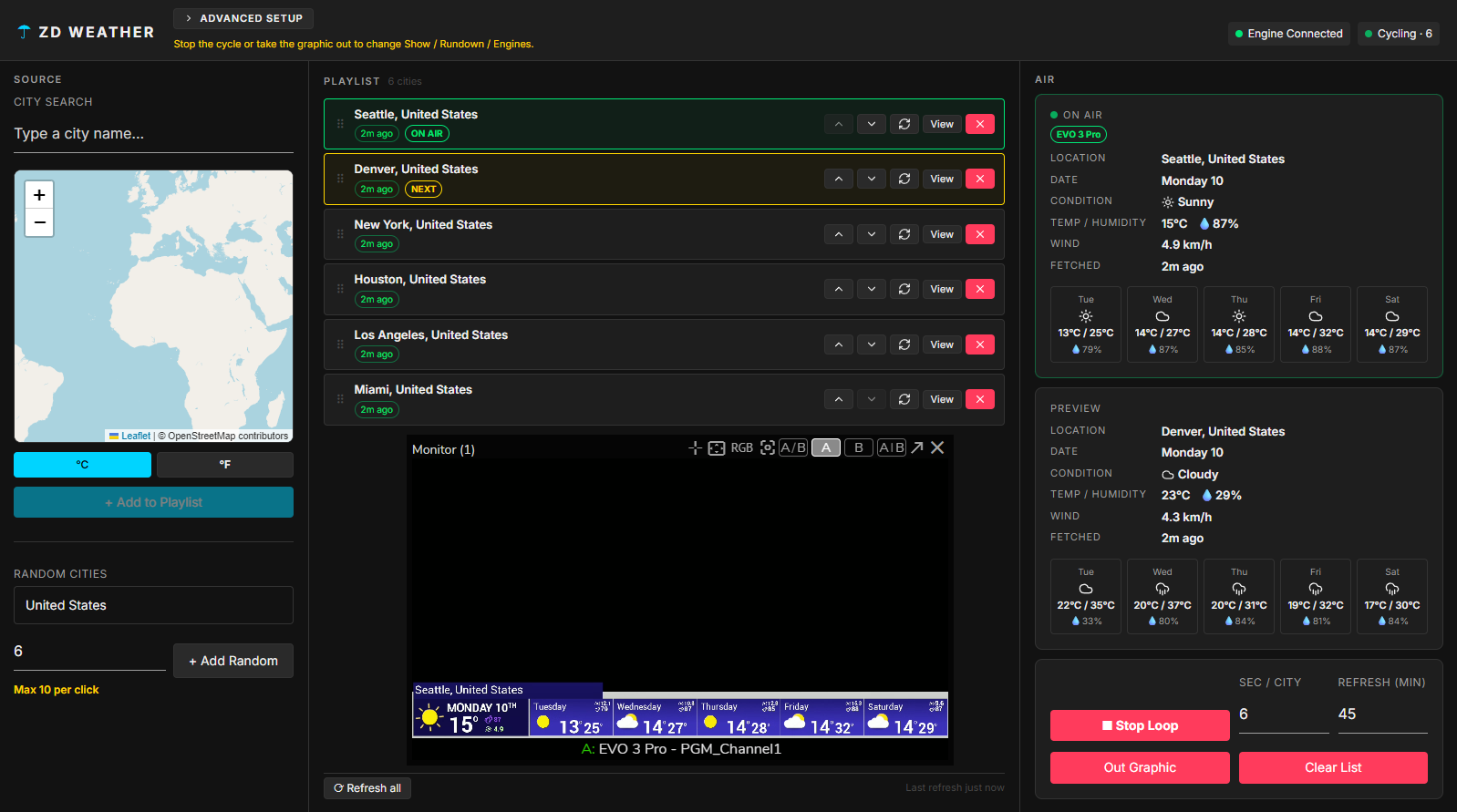
Your ZD Weather is ruuning, as ilustrated above.
Additioanl Notes
- Reordering during a running cycle keeps the same city on air. The cycle is not interrupted.
- You can change the cycle duration while on air. It takes effect on the next switch and keeps your place in the playlist.
- While a graphic is on air — including after Stop — Show, Rundown, and Engine stay locked. Press Out Graphic or Clear List to unlock them.
- The module auto-refreshes every city’s forecast on a schedule (default 45 minutes, adjustable 10–240). It skips the city that is currently on air so nothing flickers.
- Use Refresh on a row, or Refresh All, to update forecasts on demand.
- Your config and playlist come back automatically. Forecasts are fetched fresh.
- The cycle does not auto-start again. This is intentional, for broadcast safety.
- If a cycle was running when it stopped, you see a press Start to resume banner. Press Start when you are ready.