Operating Ticker
After configuration, open the Ticker module with a show running and build your crawl.
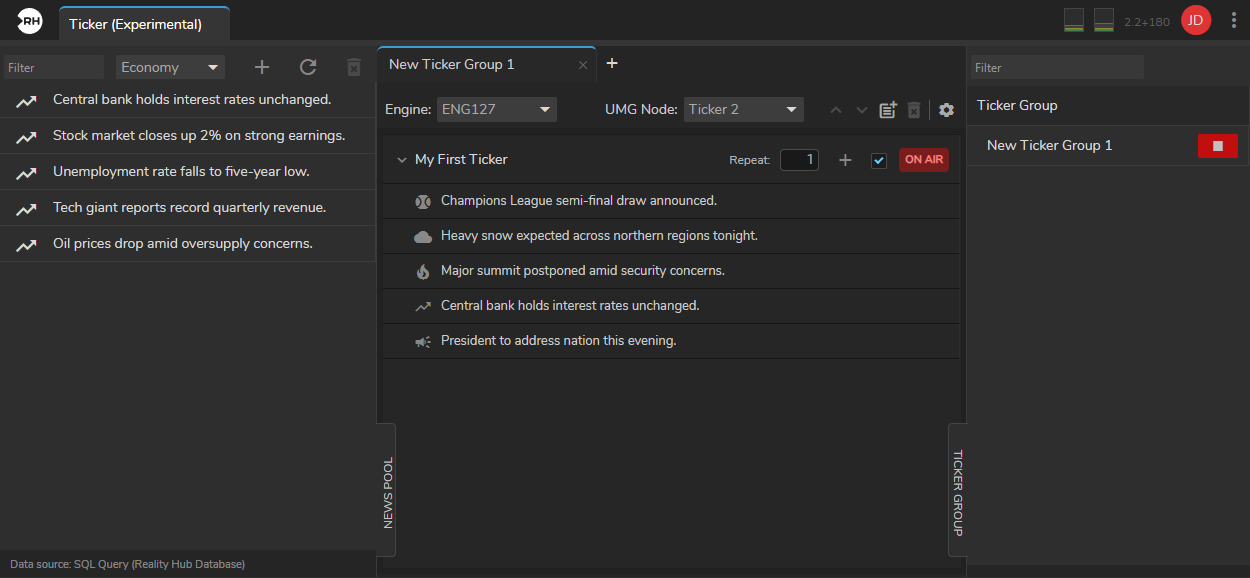
The workspace has three areas: News Pool on the left, the Ticker Group editor in the center, and the Ticker Group play panel on the right.
News Pool
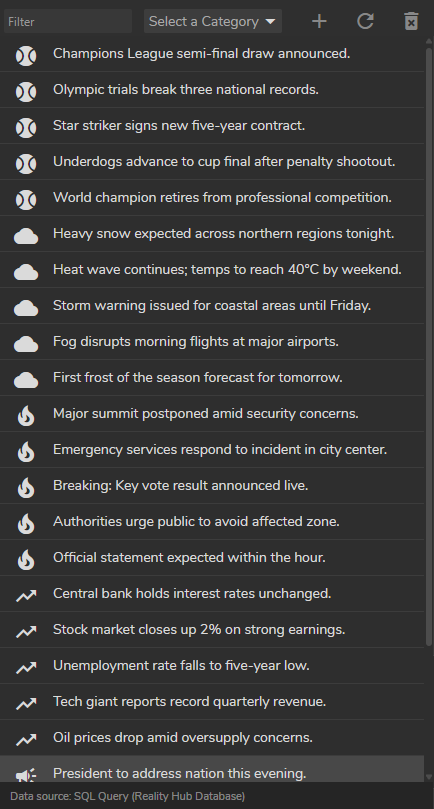
- Open the News Pool panel on the left.
- Use the Filter box to search by text.
- Use the category dropdown to filter by category (Sport, Weather, Breaking, Economy, News).
Add Items (Manual Mode)
- Click Add (+).
- Enter Content (the ticker text).
- Optionally choose a Category.
- Click Add.
Delete Items (Manual Mode)
- Select one or more rows.
- Click Delete (trash icon).
- Confirm.
Refresh (External Source)
Click Refresh to reload items from the configured data source.
Drag Items into Tickers
- Select one or more pool items (or drag a single row).
- Drag onto a ticker row or ticker item row in the center panel.
- Release to insert at that position.
You can also add items directly inside a ticker using the + button on the ticker row.
Ticker Groups
Each ticker group is a separate tab. Use groups when you need independent outputs (different engines, UMG nodes, or content sets).
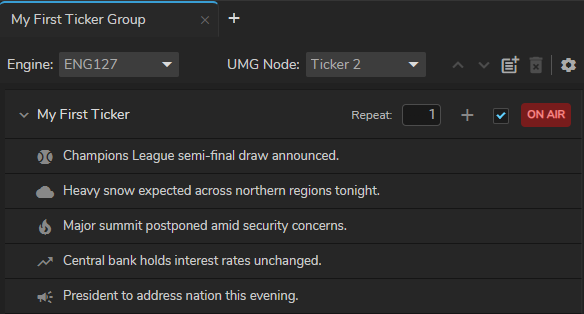
Create a Ticker Group
- Click + on the tab bar (New Ticker Group).
- Double-click the tab title to rename it.
Close a Ticker Group
Click the × on the tab. If the group is playing, it will be stopped first. Confirm to delete the group.
Assign Engine and UMG Node
Before you can play a group, link it to your on-air graphics:
- Select the ticker group tab.
- Set Engine to the show engine that has the ticker UMG widget.
- Set UMG Node to the ticker node (shown as Ticker 1, Ticker 2, and so on).
Each UMG node can be assigned to only one ticker group per engine. You cannot change Engine or UMG Node while the group is playing — stop playback first.
Your Reality project must include BPW Ticker / UMG Render Manager nodes on the engine. If no nodes appear, confirm the show is running and the engine is connected.
Ticker Group Settings
Click the gear icon in the toolbar to open Ticker Group Settings:
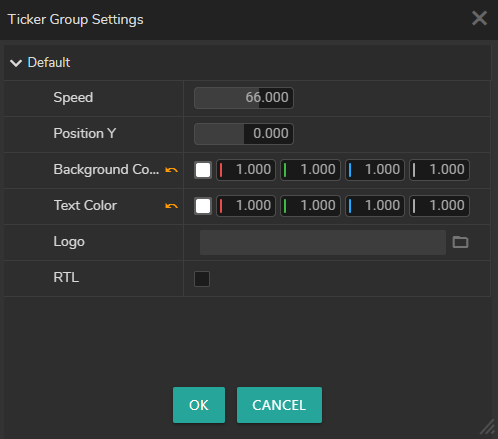
- Speed — Scroll speed (1–100)
- Position Y — Vertical position of the ticker on screen
- Background Color — Ticker bar background
- Text Color — Scrolling text color
- Logo — Image file path for the ticker logo (requires a connected Read Image node on the UMG widget).
- RTL — Right-to-left text direction.
Changes are saved automatically and synced to the engine when you play or while already on air (for most properties).
Tickers and Items
Inside each ticker group, you build one or more tickers (lanes).
Add a Ticker
Click Add New Ticker in the toolbar, or use the hint when the group is empty. Enter a name.
Expand and Collapse
- Click the arrow on a ticker row, or double-click the ticker row, to show or hide its items.
- Arrow Right expands; Arrow Left collapses or moves selection up.
Enable a Ticker
Use the checkbox on the ticker row. Only enabled tickers are included when the group plays.
Repeat Count
Set Repeat on the ticker row (default 1). The ticker’s items are repeated that many times in the scroll sequence before moving on.
Add Items to a Ticker
- Click + on the ticker row and enter content in the dialog, or
- Drag from the News Pool onto the ticker or a specific item row.
Edit, Reorder, and Delete
- Rename ticker: Right-click → Rename, or select the ticker and press F2
- Rename item: Double-click the item row, or right-click → Rename Item
- Move up/down: Select ticker(s) or item(s), use the ↑ / ↓ toolbar buttons
- Delete: Select and press Delete or Backspace, or use the delete toolbar / context menu
You cannot mix ticker rows and item rows in one delete or move operation — select only tickers or only items.
Playing and Stopping
Playback is controlled from the TICKER GROUP panel on the right (see the workspace screenshot above).
Play a Ticker Group
- Open the TICKER GROUP panel.
- Find your group in the list.
- Click Play.
Before play succeeds, the group must have:
- At least one ticker in the group
- At least one enabled ticker
- Engine and UMG Node both selected
The button shows Stop while the group is playing.
Stop a Ticker Group
Click Stop on the playing group. The ticker reverses off screen on the engine.
Live Updates While On Air
If a group is already playing, following changes update on air automatically:
- Adding, removing, or reordering items
- Enabling or disabling tickers
- Changing repeat count
- Reordering tickers
You do not need to stop and play again for these updates.
Show Stop Behavior
When the show stops, all ticker groups that were playing are reset to paused in Reality Hub. Play again after the next show start.