Enable Continuous Calibration
note
The Motive interface may look different depending on the installed version.
Check Before You Begin
- Switch Motive to Live mode. Continuous Calibration only operates in Live mode.
- Check that the system is calibrated and tracks markers in the volume. Continuous Calibration uses tracked 3D marker reconstructions.
- To start the process, more than half of the cameras must receive tracking data within part of their field of view. For the best calibration, each camera should see at least four markers.
warning
The system must continuously track at least four marker samples in the volume. Placing markers in the volume is not enough.
Enable the Feature
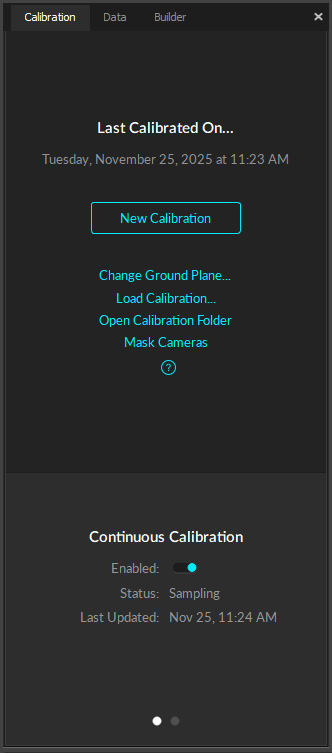
- Open the Calibration pane.
- Enable Continuous Calibration at the bottom of the pane.