Tracker Settings
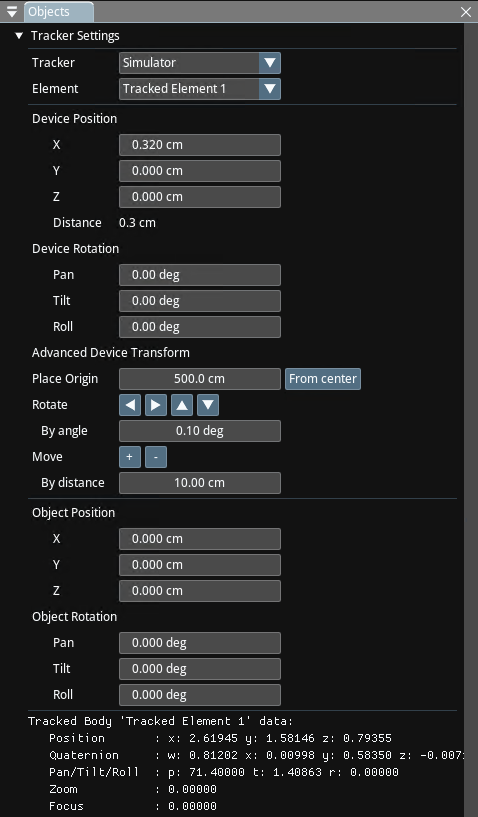
After you define your tracking type and create an association by selecting a tracker and element, you can adjust Tracking Settings via its menu located under Objects, as illustrated above.
Association

The Tracker and Element dropdowns enable you to associate a tracked element in a configured external tracker to the current Object.
Device Position/Rotation
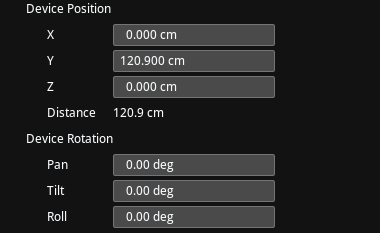
The transform to apply to the object before the transform from the tracker. This transform is useful to place a PTZ camera in studio space.
Object Position/Rotation

The transform to apply to the object after the transform from the tracker. This transform is useful to handle the offset between tracker devices attached to the camera (such as Traxis TrackBody) and the actual camera.
Advanced Device Transform
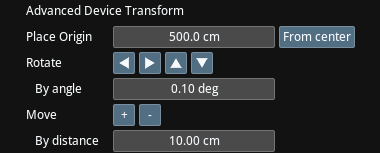
Accurately determining the location and orientation (in Studio coordinates) of a PTZ camera can be challenging. The Advanced Device Transform menu enables a workflow where the studio origin and orientation can be set.
To use this workflow:
- Pan and tilt the PTZ camera and use the crosshair so that the studio origin is at the exact center of the image.
- Measure the distance from the pivot of the PTZ camera.
- Enter the value to the Place Origin box.
- Click From Center to calculate and fill the Device Coordinate (X, Y, Z) values above, such that the PTZ camera is at the measured distance from the world origin.